Evil School Controls & Interface
Mouse, keyboard, menus, QTE difficulty, and audio settings after demo patches T.2.16–T.2.23.
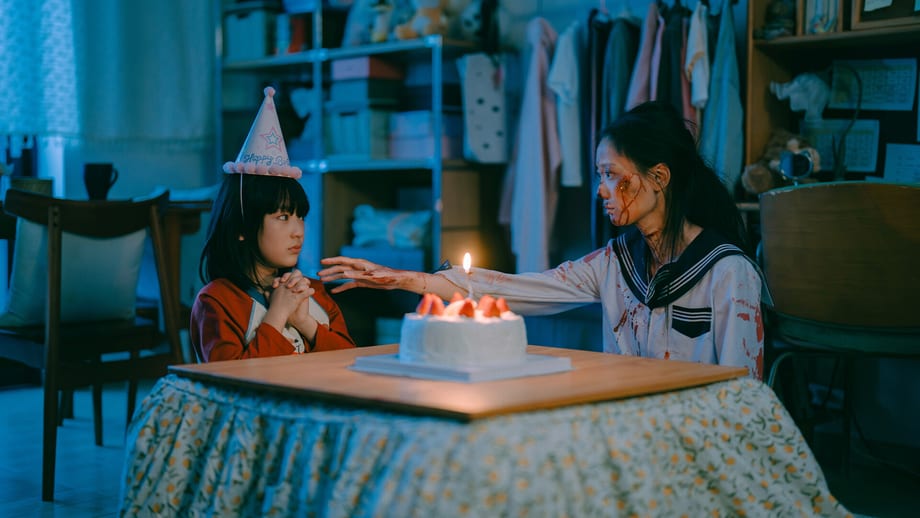
Evil School is a live-action FMV title — you spend most of your time watching filmed scenes and clicking when the interface asks. There is no free-roam movement like a third-person action game. Understanding controls, menus, and post-demo patches prevents frustration during investigations and trial prep. Pair this page with Getting Started for install steps and Clue Hunting for hotspot logic.
Core input (PC and Mac)
CineGame follows standard interactive-movie conventions on Steam:
| Action | Default input |
|---|---|
| Advance dialogue | Left-click or Space |
| Choose branch | Click highlighted option when playback pauses |
| Investigation hotspots | Mouse hover then click |
| Pause menu | Esc |
| Save / load | Pause menu → save slots |
There is no controller profile published on the store page as of August 2026. Assume mouse-and-keyboard unless a future patch adds gamepad glyphs.
Branching and timers
When a choice icon appears, the video pauses until you select. Most scenes do not use countdown timers — read each line calmly. Exceptions exist in rapid-tap QTE segments; demo patch T.2.16 (June 18, 2026) explicitly reduced QTE difficulty after player feedback. If you struggled on an older demo build, update through Steam and retry.
Skipping: many scenes allow skip after first view from the pause menu or on-screen prompt. Do not skip first-time investigation scenes — clues often appear once per playthrough.
Save system
Evil School uses manual save slots accessed through Esc:
- Save before every investigation phase and before trial planning screens.
- Keep at least three slots — one blind run, one evidence run, one experimental aggression or empathy run.
- Demo progress may not transfer to the full game; treat saves as session tools, not long-term completion records. Use the Demo Ending Checklist for cross-session tracking.
There is no cloud-save marketing on the store page — assume local saves tied to the Steam user on that machine.
Archive and chapter UI (patch T.2.11)
Demo patch T.2.11 (June 4, 2026) improved navigation layers many players miss:
- Chapter pages — floating character animations polished for readability.
- Archive page — image resource details improved; red dot reminders added when new entries unlock.
- Chapter settlement — an easter egg video appears on the settlement page (watch once for flavor, not route flags).
If red dots persist after viewing, reload the save — occasional UI desync was reported pre-patch.
Language, voice, and subtitles
Steam lists seventeen interface languages with English full audio at launch metadata. Demo patches added test voice tracks:
| Patch | Addition |
|---|---|
| T.2.21 (July 2, 2026) | English voice-over test — switch in settings |
| T.2.23 (July 24, 2026) | Russian voice-over test — switch in settings |
Open Settings from the pause menu to swap voice and subtitle languages independently. English VO is labeled a test version — report sync issues on the Steam Community forum threads tied to each announcement. Subtitle-only play remains valid for lore-heavy first runs.
For wiki readers in French, German, or Spanish: UI text is localized on Steam, but full dub may remain English until CineGame confirms additional VO.
Investigation UI cues
During clue segments:
- Cursor change or glow marks clickable props.
- Notebook pop-ups log evidence for trials — cross-check Trial Mechanism.
- Patch T.2.16 made hidden exploration items visible to lower difficulty — items you missed in February builds may now show markers.
Missing a hotspot before a scene ends can lock evidence until reload. Save beforehand.
Trial preparation screens
Trial UI presents evidence cards, venue selection, and tone choices. The interface does not always warn when evidence is unbound — greyed names on the blood list mean insufficient proof. See Demo Endings for outcomes when entering trials under-prepared.
Performance and display
FMV playback is video-decoder heavy, not GPU shader heavy. Integrated graphics meet minimum specs. If stutter appears:
- Install on SSD if possible (40 GB asset footprint).
- Close overlay software conflicting with fullscreen.
- Verify Steam file integrity after major patches.
macOS builds follow the same control scheme; use trackpad click as primary select.
Accessibility notes
No dedicated color-blind mode is documented. QTE segments rely on rapid clicking — patch T.2.16 reduced frequency but did not remove them entirely. Players with motor difficulties should save before known QTE scenes listed in Demo Walkthrough phase notes.
Streaming and capture
Steam explicitly allows YouTube and TikTok streaming. Captures use standard OS tools; no hidden anti-capture. Spoiler-tag major trial outcomes for audiences waiting for the August 14, 2026 launch.
Patch checklist for returning players
If you have not launched since February 2026:
- Update demo through Steam.
- Confirm English or Russian VO in settings if desired.
- Re-run Chapter 1 investigation — visible hotspots may reveal previously missed clues.
- Retry QTE scenes that felt unfair on old builds.
Full changelog lives on Demo Patch Notes.
Related pages
- Getting Started — first-hour flow
- System Requirements — storage and OS
- Demo Patch Notes — dated fixes
- Choices and Consequences — what menus cannot show (hidden flags)
Frequently Asked Questions
Quick answers to the most common questions.
Does Evil School support controllers?
No official controller layout is listed on Steam as of August 2026. Use mouse and keyboard.
How do I change voice language in the demo?
Open Esc → Settings. English and Russian voice-over tests were added in July 2026 patches.
Did the QTE difficulty change?
Yes. Patch T.2.16 reduced rapid-tap QTE difficulty and made hidden items visible.
Where are saves stored?
Local save slots via the pause menu. Use the wiki checklist tool to track endings across sessions.